Add preview text
Many email clients display a message in the inbox called preview text. This text is inserted into the HTML body of your email and will usually display after the From Name and Subject Line. Enter approximately 90 characters of preview text to entice your reader to open the email. Preview text differs from Preheader text because it does not display when the email is opened.

-
Click on the Settings tab from the edit panel of the editor
-
Update the text in the Preview Text field
Write your own content or click the yellow AI icon in the Settings tab to generate a summary of your email text. It will read through the text contents of your email and generate up to 90 characters in the Preview Text field. If the field already has text in it, a confirmation message will ask if you want to replace it. The tool can read multiple languages, but will only generate English text at this time.
-
Click Save
Set social preview
Add custom fonts
Fonts from Google Fonts and Adobe that have been set up on the Account > Branding page can be added to emails and pages. After they are added, they can be specified in the stylesheet tab.
Update the Title text
This is the text that shows up in the browser tab when your sent email is opened in a browser using the View in Browser link. By default this tag uses the organization name set up in Account > Organization Info. To verify your title, send a test email, then click on the View in Browser link to view the title in the browser tab.

Set language in the Settings tab
Use this dropdown to select the dominant language used in your email. This helps assistive technologies recognize your text. It does not translate your content. LANG=EN is set by default.
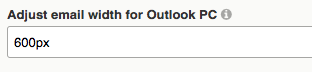
Adjust the width of email in Outlook
This is the width of your email when it is rendered in Outlook email clients. Use this field if you want to make your Outlook PC version wider, especially to accommodate text in three-column containers. This width is set to 800px by default.