
Add icons from the WordFly icon library
The icon library has the most common social icons available in multiple colors. It is not possible to upload your own icons to this library. Icons can be inserted into any social links, text, preheader, or footer block.
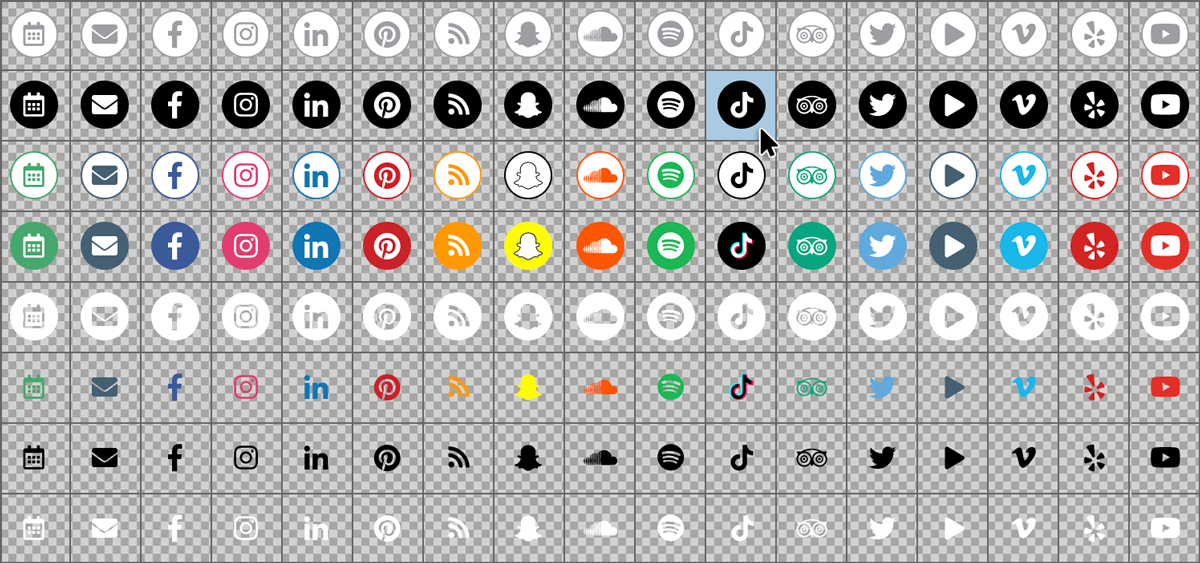
To add an icon inside a Social Link block
- Click on the Social Links block in your design. If you don’t have one, Drag and drop a new Social Links block into your design.
-
Click the + icon to open the WordFly icon library
- Select the icon to add
- Add your social link URL into the Link field, then click I’m done
To add a custom icon inside a Social Link block
-
Click on the Social Links block in your design
If you don’t have one, Drag and drop a new Social Links block into your design. - Click the pencil icon for the icon you would like to replace
-
Click Change icon
-
In the Add Icon modal, click Browse/Upload Media
- Select or upload your icon
- Add your social link URL into the Link field, then click I’m done
To add a WordFly social icon inside a Text block
-
Add your cursor into the open content area, and click the Icons link

- Select an icon to add to your block
-
Fill in the fields for alt text and website URL, then click I’m done
This adds the selected social link to your block along with the alt text and link you assigned to it. Continue repeating the steps above until you have added all of the icons you wish to add to your email design.
Use the same social icons across all emails
Once you have your email design finished, you can continue to use the same social icons in each new email design. There are two options to maintain the same social icons in new emails.
Option 1: Duplicate existing emails that already have social icons set up
Duplicate your email to create new versions that can then be made unique for a new email campaign send.
Option 2: Use Save to Blocks to create a custom social media block
Right-click on any block and select Save to Blocks to create a reusable block for use in any email or page design.