Tessitura customers: Set up preferences for use with Tessitura
Preferences allow your subscribers to select the content they would like to receive on a regular basis. As a result, you will be targeting your lists to the right subscribers from the very start. You’ll benefit from higher engagement rates and better inbox delivery since ISPs use subscriber engagement as a key benchmark for filtering your messages.
How preferences work
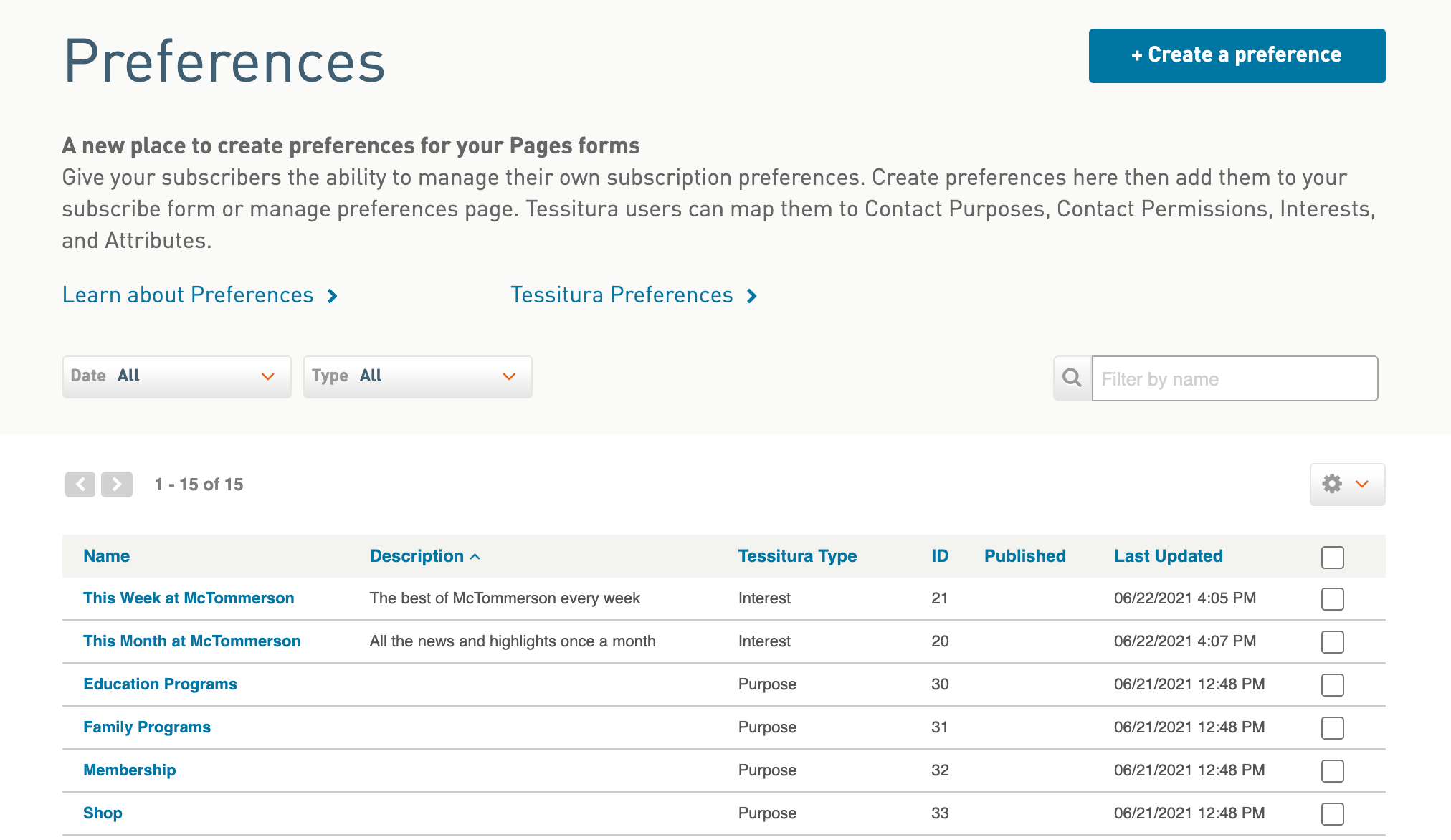
In WordFly you can set up any number of preferences for your subscribers to tell you what news they want to hear from you. Preferences in WordFly live as Data Fields. Even though you create them under Subscribers > Preferences, the actual preference itself is a data field that you can use to display conditional content in emails or segment your lists in a campaign.
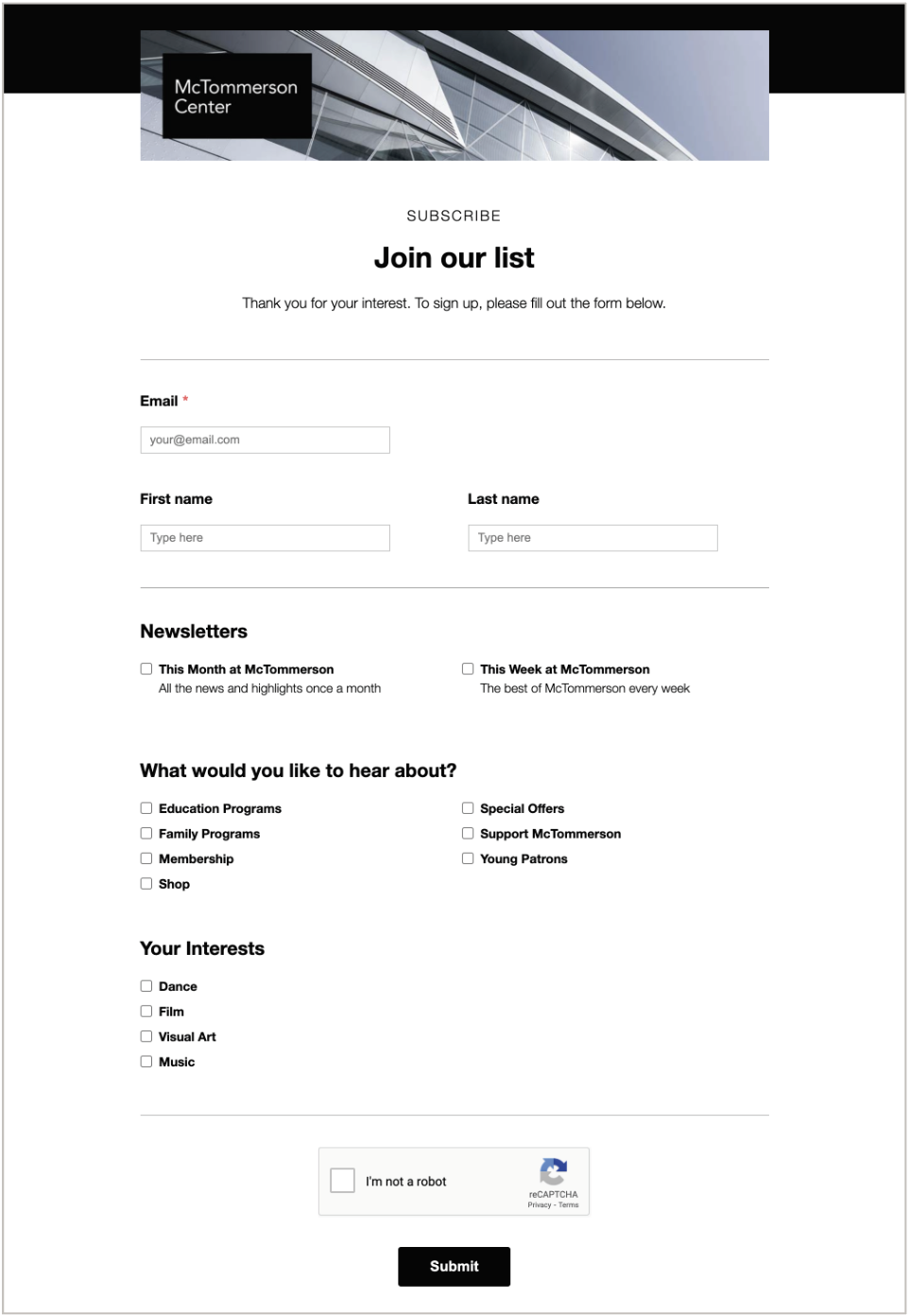
The preferences you create can be added to the WordFly Subscribe and Preferences pages. You can have multiple preferences sections on a single page. This allows you to group preferences into different blocks, like “What would you like to hear about?” and “How often would you like to hear from us?” Drag over a new Preferences block when you want a new grouping.
When a subscriber checks a preference on your subscribe or preferences page, they are opted in to that preference. Unchecking a preference will mean they opted out. In WordFly you can see any of the subscriber’s preferences by searching for their subscriber profile.
Set up preferences
- Go to Subscribers > Preferences
-
Click the Create button
If the button is greyed out, make sure you have the Manage Preferences user permission enabled. -
Type in a preference name
- Type a short name into the Name field
Be sure to only use alphanumeric characters for your data fields. Special characters such as parentheses, commas, and quotes can break your list imports. Dashes, spaces and underscores are acceptable. - The Description field is optional but it is helpful when you want to provide more details
- Type a short name into the Name field
-
Click Save
There is no limit. Add as many preferences as you need for your organization.
Learn how to add preferences to your Preferences page and Subscribe page.