
The event data export gives you the ability to include subscribers who DID have events. WordFly will include or exclude subscribers based on the event information selected. For example, if you include Opens, you could opt to exclude subscribers who Clicked. The resulting export would provide you with subscribers with Opens but exclude any subscribers who Clicked (even if those subscribers has Opens).
Export Events by Campaign
- Go to Reporting > Export Data
-
Select Events by Campaign in the dropdown, then click I'm Done
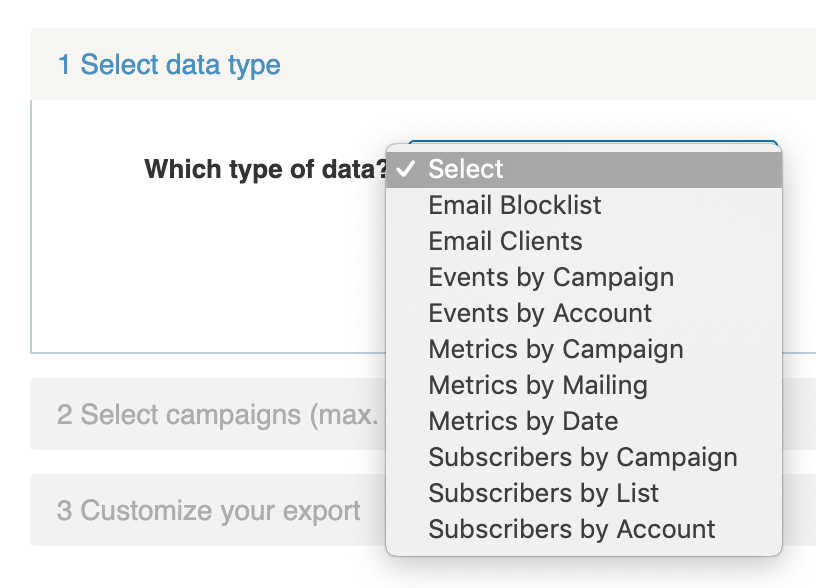
-
Select the campaign(s) you would like to review, then click I’m Done
You can export up to 50 campaigns at a time. -
Select the data you would like to include in your export and adjust the date range
The date range will default to the send date of the first campaign selected and the date of the last response of the most recently sent campaign selected.
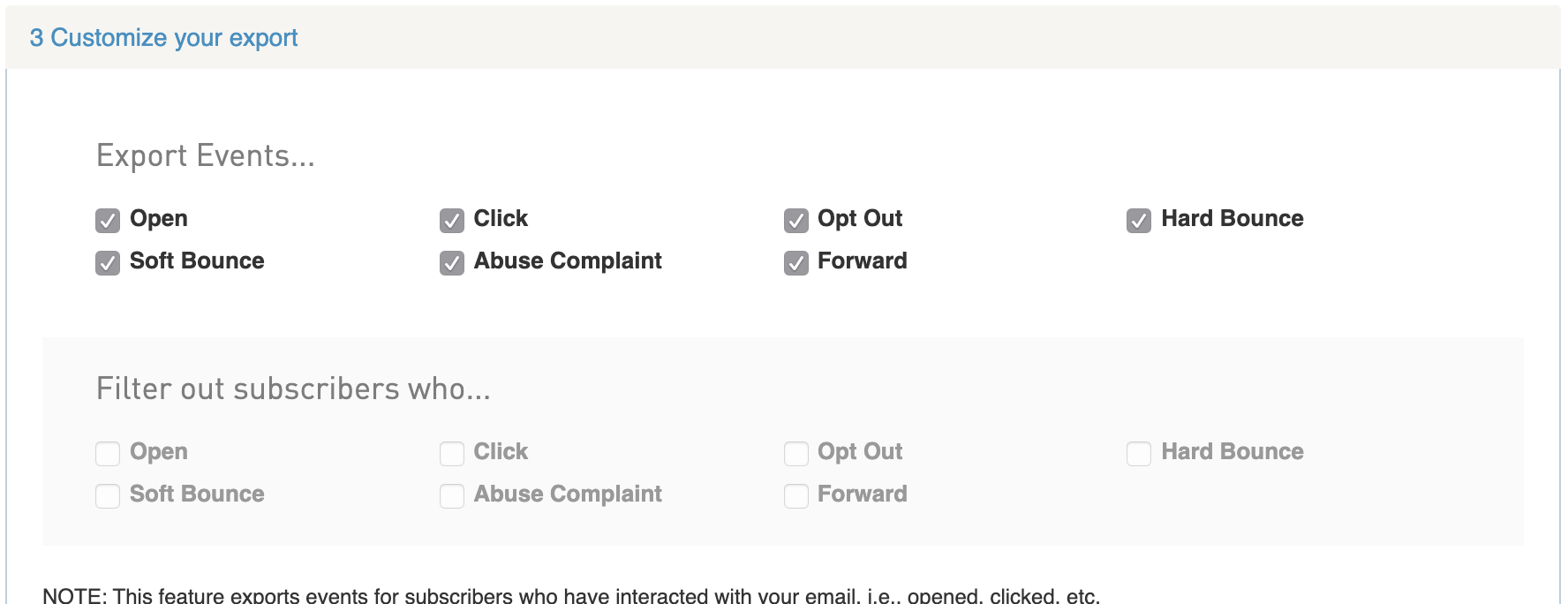
-
Click Start Export
Export subscribers without events
In order to export a list of subscribers who did not have an event, such as opens or clicks, you can use WordFly segmentation in a new email campaign.
- Go to Emails > Email Campaigns and select to Create a campaign
- On the Subscribers tab, assign a list
- On the List Summary, go to More list actions > Segment your list
- Use the onscreen options to segment by events (did open, did not open, did click, did not click)
- Once you have your list segmented you can export your segment or send to the segmented list