
WordFly provides individual and overall campaign rates to keep you updated on your marketing goals. In this article we will review how reporting rates are calculated and where to review results.
Calculations for reporting rates
Here are the calculations WordFly uses for email reporting:
| Unique Open Rate | Unique Opens divided by Total Delivered |
| Unique Click Rate | Unique Clicks divided by Total Delivered |
| Unsubscribe Rate | Opt Outs + Abuse Complaints divided by Total Delivered |
| Opt Out Rate | Total Opt Outs divided by Total Delivered |
| Abuse Complaint Rate | Total Abuse Complaints divided by Total Delivered |
| Hard Bounce Rate | Unique Hard Bounces divided by Total Sent |
| Soft Bounce Rate | Unique Soft Bounces divided by Total Sent |
| Delivered Rate | Delivered Total divided by Total Sent |
| Undelivered Rate | Undelivered Total divided by Total Sent |
| Organization Average | The aggregate of all of your organization’s campaign data for a particular campaign event. (Basically the average of the averages) |
| Engagement Rate | Unique Subscribers who clicked any link divided by Unique Opens |
| Subscriber Interest Rate | Unique Click Rate divided by Total Delivered |
Percentages in the campaign summary on the Send tab may be rounded up occasionally. The most accurate percentages will appear in the Reporting section.
Find results for sent emails
To find your results by individual campaign
- Go to Email > Email Campaigns
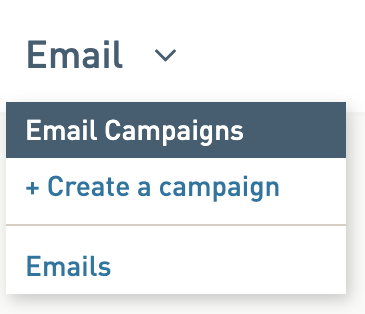
- Click on the name of a sent email campaign to see summary results
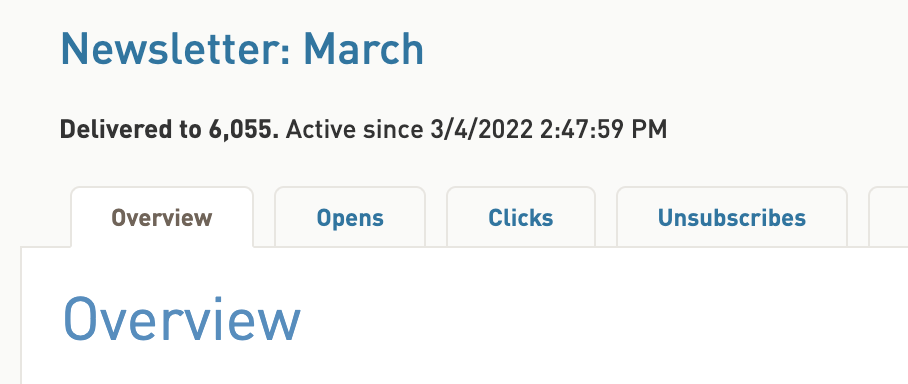
This will open the campaign summary page where you’ll see all of the rates for unique opens and clicks, unsubscribes, hard bounces, and soft bounces. You’ll also see your overall average directly below the campaign rates.
To find your results under Reporting
- Go to Reporting > Sent Email Campaigns
- Click on the name of a sent email campaign to see summary results
This will open the email campaign summary page and display the same results that you would see under the individual campaign. Here you can select any of the tabs to review your results.
Find campaign engagement rate for sent emails
- Go to Reporting > Compare Campaigns
- Select what to compare: Campaign Type, Labels (optional), and a Date Range (optional)

- Click Show Results
- The comparison will run and the campaign engagement rate will display at the top of your campaigns list.
