
Export unsubscribes (Events by Campaign)
You can export your unsubscribe events for a single email campaign or up to 50.
1. Go to Reporting > Export Data
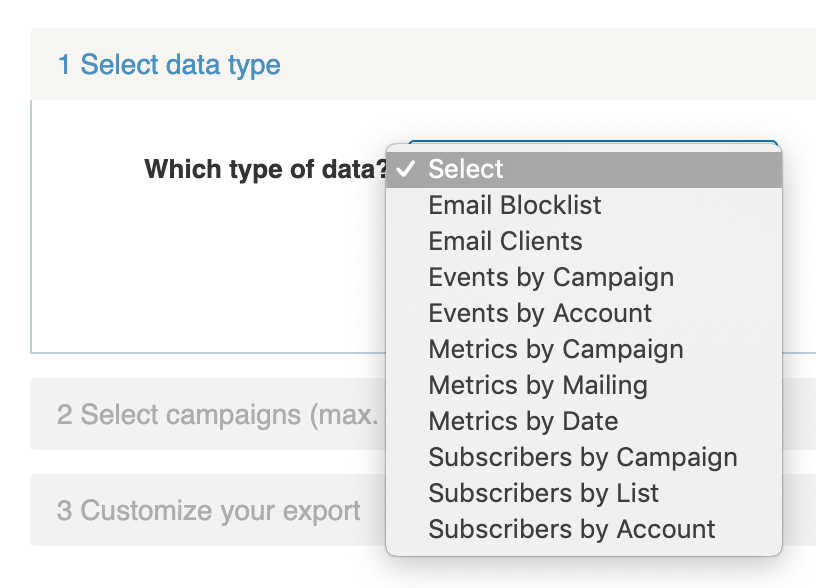
2. Select Events by Campaign from the dropdown
3. Select the campaign(s) you would like to review
You can export up to 50 campaigns at a time.
4. Select the Event Types to export
To see all unsubscribe types, select Opt Out, Hard Bounce, and Abuse Complaint.

5. Select the Subscriber Data fields to export
Use the grey rectangle shortcuts to quickly select data fields associated with Engagement, CRM, and Preferences.
6. Click Start Export
Export unsubscribes, abuse complaints, and hard bounces (Events by Account)
This export is helpful if you need to do a bulk export from your account. For example, you can use this option to export all unsubscribes, abuse complaints, and hard bounces in your account.
1. Go to Reporting > Export Data
2. Select Events by Account from the dropdown, then click I’m Done
3. Select all the types of data to export and any data fields
Note: Only unsubscribes, abuse complaints, and bounce events can be selected.
4. Select the date range for the export
The default is set to one month.
5. Click Start Export
What to expect for the Events by Account export:
- This export includes any email address that has recorded an unsubscribe, abuse complaint, or hard bounce, even if the event is overridden.
- Email us if you would like to enable a column that shows which addresses have active events.
Export addresses that are excluded from campaigns (Email Blocklist)
An address can become blocklisted in WordFly in a few ways:
- The sending status was changed to Do not contact on the subscriber’s profile page in WordFly
- The subscriber clicked the spam button, submitting an abuse complaint
- The unsubscribe link was clicked on a Forward to a Friend email from that address
When you export your blocklist, the Exclusion column will show the type: Do Not Contact, Abuse Complaint, or WordFly Blocklist (forward to a friend unsubscribe).
To export your WordFly blocklist
1. Go to Reporting > Export Data
2. Select Email Blocklist from the dropdown, then click I’m Done
3. Click Start Export